
Microsoft 365 safeguards for phishing, access and alerts
A single weak sign-in can put email, files and business operations at risk. The Microsoft 365 security best practices for business start with blocking legacy authentication and requiring multifactor authentication (MFA) to protect access. These controls close common gaps before they become an incident.
You’re right to look beyond passwords: reliable protection also depends on keeping useful audit records, reducing phishing and malware exposure, and acting on suspicious activity. This guide explains how to strengthen sign-in controls, preserve Microsoft 365 audit logs, configure email protections and respond to security alerts with clear next steps.
You’ll also see how permissions, employee awareness, and regular security reviews contribute to a practical defense. The goal is simple: make attacks harder to carry out and give your team better information when something needs attention.
Key Takeaways
- Block legacy sign-ins and strengthen access controls to reduce exposure from vulnerable authentication methods.
- Preserve useful audit records so suspicious activity can be investigated with better context.
- Layer email protections and employee awareness practices to help limit phishing and malware risks.
- Prioritize security alerts by severity, then follow a clear process to investigate and respond.
- Regularly review permissions and security settings to keep protections aligned with how your team works.
1. Blocking legacy authentication
Start by blocking legacy authentication in your Microsoft 365 environment. Older methods such as IMAP and POP don’t support multifactor authentication (MFA), leaving accounts easier to exploit. Use Conditional Access or security defaults to block these sign-ins. Security defaults are on by default and suit most organizations using Microsoft 365 for business. These access safeguards are a core part of Microsoft 365 security best practices for business.
Microsoft 365 Business Basic, Business Standard, and Business Premium include anti-phishing, anti-spam, and anti-malware protection for email. Business Premium adds Defender for Office 365 Plan 1, including impersonation protection, anti-phishing thresholds, Safe Links, and Safe Attachments. Microsoft 365 E3 also includes Defender for Office 365 Plan 1, while Microsoft 365 Business Premium supports Conditional Access for more stringent requirements.
The cost of Microsoft 365 Business Premium in the United States depends on the licensing arrangement and billing terms. Its security features include Defender for Office 365 Plan 1 protections and support for Conditional Access, alongside email protections against phishing, spam, and malware. Review the plan and billing terms together before setting a budget.
Apply MFA across Microsoft 365 users, including privileged roles, remote access, and guest or external users. Keep break-glass accounts as the exception, and protect them separately. For stronger cybersecurity, favor phishing-resistant MFA, such as FIDO2 security keys, for administrators. App-based authentication, such as Microsoft Authenticator, is a stronger choice than SMS; avoid voice-call verification for administrator accounts.
Admin controls should separate routine work from high-impact changes. Avoid using Global Administrator accounts for day-to-day tasks. Assign roles according to job duties, grant only the permissions needed, and review access regularly. The Federal Financial Institutions Examination Council (FFIEC) says user access should be limited to the systems and resources required for each person’s role. Privileged Identity Management can also make elevated access expire after a set period, such as two hours.
For SharePoint and OneDrive, set file-sharing controls to match business needs. Limit access to intended people, review permissions, and use sensitivity labels and Data Loss Prevention to help protect sensitive files. A custom DLP policy, for example, can block an email containing more than five Social Security numbers from being sent externally. Microsoft 365 Business Premium supports automatic or manual Microsoft Purview Message Encryption.
These settings work together: legacy sign-in blocks reduce exposure, MFA adds another factor, and least privilege limits what a compromised account can reach. Together, they provide a practical foundation for Microsoft 365 security best practices for business. Treat configuration as an ongoing part of your cybersecurity controls, not a one-time setup.
2. Audit logging and retention policies
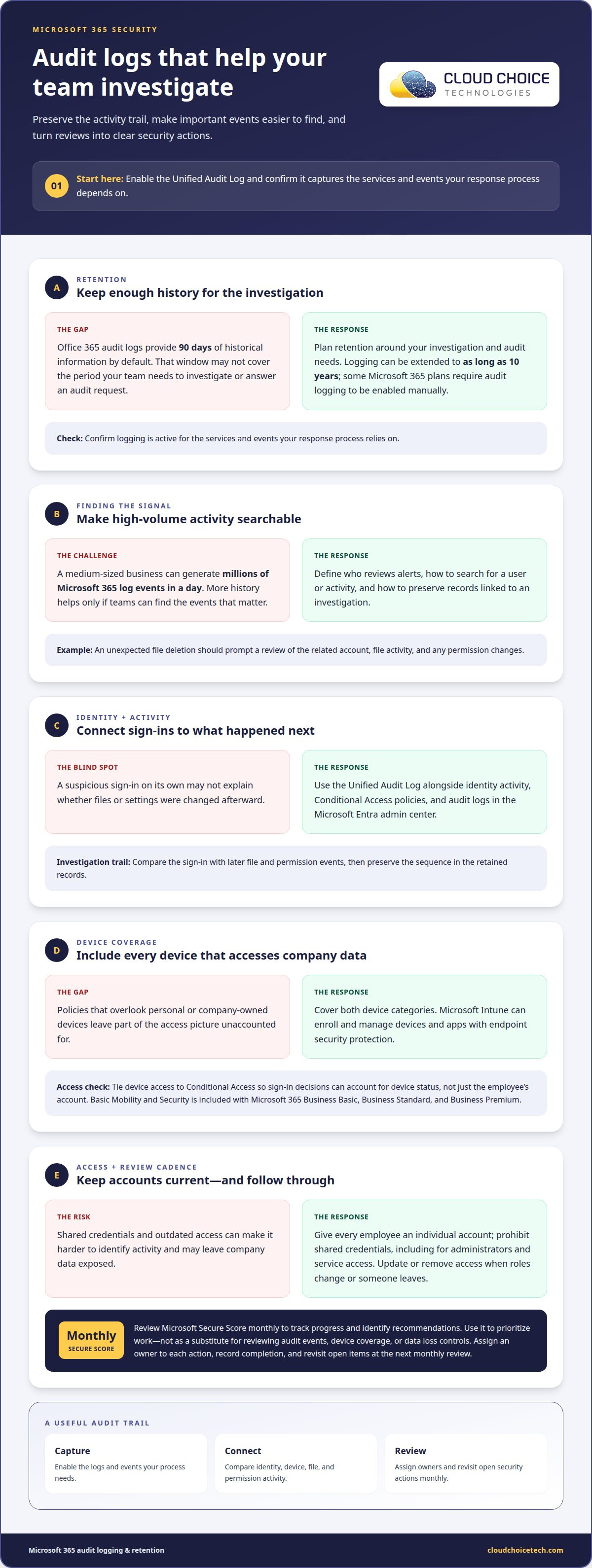
Enable the Unified Audit Log to record activity across Microsoft 365 services. It gives investigators a shared record of actions in Exchange, SharePoint, OneDrive, and other services. The Microsoft Entra admin center also provides access to identity activity, Conditional Access policies, and audit logs. Together, these records help connect a suspicious sign-in with later changes to files or settings.
Plan retention around how long your organization may need to investigate an incident or answer an audit request. Office 365 audit logs provide 90 days of historical information by default, and logging can be extended to as long as ten years. Some Microsoft 365 plans require audit logging to be enabled manually. Confirm that logging is active for the services and events your response process depends on.
More history is useful only when teams can find relevant events. A medium-sized business can generate millions of Microsoft 365 log events in a day. Define which administrators review alerts, how they search for a user or activity, and how they preserve records tied to an investigation. For example, a report of an unexpected file deletion should prompt a review of the related account, file activity, and any permission changes.
Device policies should cover every device that accesses company data, including personal and company-owned devices. Microsoft recommends protecting both categories. Microsoft Intune can enroll and manage devices and apps with endpoint security protection; Basic Mobility and Security is included with Microsoft 365 Business Basic, Business Standard, and Business Premium. Tie device access to Conditional Access so a sign-in decision can account for device status, not just the employee’s account.
Give every employee an individual account and prohibit shared credentials, including for administrator accounts and service access. Pair password controls with MFA, and update or remove access when an employee changes roles or leaves. This reduces the risk that outdated credentials will continue to expose company data.
Review Microsoft Secure Score monthly to track progress and identify security recommendations. Use the score to help prioritize work, not as a substitute for reviewing actual audit events, device coverage, or data loss controls. Assign an owner to each action, record its completion, and revisit open items at the next monthly review.
Consistent logging and device policies make security reviews more useful. Organizations that need help aligning Microsoft 365 settings, device protection, and monitoring can consider managed IT support as part of their operational approach.
A response is more effective when investigators can compare identity signals with service activity. Microsoft's risk-based sign-in example describes impossible travel as a user logging in from two countries in an hour. A flagged sign-in can prompt a review of subsequent file and permission events, while retained records preserve the sequence for investigation. Microsoft recommends setting up multifactor authentication as part of stronger identity protection. Apply it to administrator accounts and everyday accounts, and make sure response owners know how to act on alerts.
3. Anti-phishing and anti-malware protections
Build email defenses in layers. Microsoft 365 Business Basic, Business Standard, and Business Premium include anti-phishing, anti-spam, and anti-malware protection for email. These protections help filter suspicious messages before they reach employee inboxes. Configure the available policies for your organization, then review how they treat impersonation attempts, suspicious attachments, and links that may lead to harmful sites.
For stronger link protection, Microsoft Defender for Office 365 Plan 1 includes Safe Links. It scans URLs in email and Microsoft Teams messages, then checks links again when users click them. That time-of-click filtering can help block a link that appeared safe when the message first arrived. A practical rollout includes testing policy behavior with representative messages and making sure employees know how to report unexpected links.
Microsoft 365 Business Premium includes Defender for Office 365 Plan 1 protections, including impersonation protection, anti-phishing thresholds, Safe Links, and Safe Attachments. Microsoft 365 E3 also includes Plan 1, while Microsoft 365 E5 and the Microsoft 365 E5 Security Add-on include Plan 2. Match the protection available in your subscription to the threats your organization needs to address, and avoid assuming every plan has identical controls.
Protect endpoints as well as inboxes. Microsoft Defender for Business supports up to 300 users and up to five devices per user. This can help businesses cover employee devices that access company systems, rather than focusing only on email. Include endpoint coverage in your security posture review, and examine whether company and personal devices receive the appropriate protection for their access to sensitive data.
Employees are an important part of your defense. Use simulated phishing campaigns and brief, recurring security lessons to help staff practice recognizing suspicious messages. Teach a simple response: pause, inspect the sender and context, avoid unexpected attachments, and report questionable email through your organization’s process. If a message appears to come from someone you know, verify it through a trusted communication channel before acting.
Keep response paths clear. When an employee reports a suspicious message, security staff can assess the sender, links, attachment, and affected accounts, then use available Microsoft Defender controls to contain the risk. Review repeated detections for patterns, such as recurring impersonation attempts or malware attachments, and adjust policies accordingly. Strong cybersecurity protections combine email filtering, endpoint coverage, and practiced employee reporting without relying on one control alone.
Microsoft 365 Business Premium includes email anti-phishing, anti-spam, and anti-malware protection, plus Defender for Office 365 Plan 1 features: impersonation protection, anti-phishing thresholds, Safe Links, and Safe Attachments. It also includes Microsoft Defender for Business endpoint support for up to 300 users and up to five devices per user.
4. Alert fatigue and threat response
Microsoft 365 alerts help surface threats, but a crowded queue can obscure urgent activity. Set a triage process that separates high-impact events from routine notifications. For each alert, record the affected accounts, service, time, and reason for escalation. An alert involving an administrator identity or unexpected changes to sensitive files should receive priority over a low-risk policy notice.
Use Microsoft Defender and Microsoft Entra sign-in information to build context before taking action. Compare the alert with recent account activity, device details, and related audit events. For example, investigate an unusual sign-in followed by unfamiliar mailbox rules as one sequence, rather than as separate notifications. A clear record helps responders distinguish a genuine threat from expected employee activity.
Define response steps before an incident disrupts business operations. Assign an owner to assess alerts, identify affected users, and decide whether to restrict an account or session. Preserve relevant audit records and document each action, including its time and rationale. If suspicious activity involves an employee account, check for related access to SharePoint, OneDrive, Exchange, and Microsoft Teams.
Match containment to the evidence. A confirmed compromised account may require a password reset, session revocation, and a review of authentication methods. Examine suspicious forwarding rules or new permissions as well. If sensitive information may have been exposed, identify the files or messages involved and follow your organization’s data-handling and notification procedures. Avoid broad changes that disrupt unrelated users without improving containment.
Reduce alert fatigue by tuning policies to meaningful risks instead of suppressing repeated notifications. Group duplicate alerts, route them to the appropriate responder, and document which patterns require escalation. Review recurring false positives alongside confirmed incidents. For example, if a trusted business process repeatedly triggers a policy, refine the rule while retaining detection for unusual sign-ins or unexpected file access.
Microsoft 365 encryption and sensitivity controls can help protect information, but responders still need to assess access and activity. After resolving an event, capture the timeline, root cause, affected accounts, and control changes. Use that review to update response instructions and employee guidance. A consistent process, supported by relevant cybersecurity services, makes alert handling more repeatable and helps teams learn from each incident.
Reliable follow-through also depends on clear ownership of the settings behind detection and response. Under the Microsoft 365 shared responsibility model, Microsoft protects the infrastructure while customers are responsible for their data. This division makes it important to connect alert handling with decisions about how the organization configures its environment. Businesses should actively manage Microsoft 365 security settings and configurations because poor configuration can leave their environment vulnerable to data breaches and other cyber threats.
Include this responsibility in routine response reviews, not only discussions after a confirmed incident. If a pattern repeatedly reaches responders, consider whether the relevant settings or configuration need attention, while preserving the evidence-based triage process. Record the reason for each adjustment and review its effects later. This connects configuration decisions to incident learning and keeps the customer’s responsibility for protecting its data in view.
Cloud Choice Technologies: AI Compliance and Security
Cloud Choice Technologies helps businesses address security and compliance concerns through AI Compliance and Security, alongside cybersecurity and managed IT services. Turn to this support when Microsoft 365 settings, access controls, audit practices, or security alerts need coordinated attention. A cyber risk analysis can help identify gaps and clarify which risks to prioritize, while remote support can assist with day-to-day technology needs.
Microsoft 365 safeguards work best when they fit your organization’s data, users, and operations. Cloud Choice Technologies can help bring those priorities into focus, including where AI use introduces new compliance or security considerations. The next step is a conversation about your environment and the issues you want to resolve.
Contact Cloud Choice Technologies to discuss your Microsoft 365 security needs.
Build a security approach your team can sustain
Strong protection depends on more than configuration. Your team also needs clear ownership, practical response procedures, and regular attention as work patterns and technology change. Treat Microsoft 365 security best practices for business as an ongoing operating discipline, one that connects technical controls with the people who use them.
Cloud Choice Technologies supports businesses with Managed IT Services, Cybersecurity, and Remote Support. These services address operational needs alongside security concerns, from managing IT environments to handling technical issues. Identify where your team needs support, then align the next step with your business priorities.
Start a focused conversation about your organization’s Microsoft 365 security needs. Contact Cloud Choice Technologies today and take a clear next step toward stronger, sustainable protection.
Frequently Asked Questions
What are common Microsoft 365 security risks and incident response steps for businesses?
Common risks include exposed files caused by overly broad sharing, compromised accounts, malicious app permissions, and email-based attacks. During an incident, assign an incident lead and keep a time-stamped record of decisions. Identify affected services and data, then assess operational impact, including disrupted workflows and users who need updates. Coordinate communications through an approved channel, and document recovery actions and policy changes after containment. A clear record supports follow-up and helps prevent confusion across teams.
How do Microsoft 365 retention policies, backups, and recovery work, and what should businesses configure?
Office 365 audit logs retain 90 days of history by default and can be extended to as long as ten years; enable logging manually if your plan requires it. Choose a third-party Microsoft 365 backup solution that covers Exchange, OneDrive, SharePoint, and Teams.